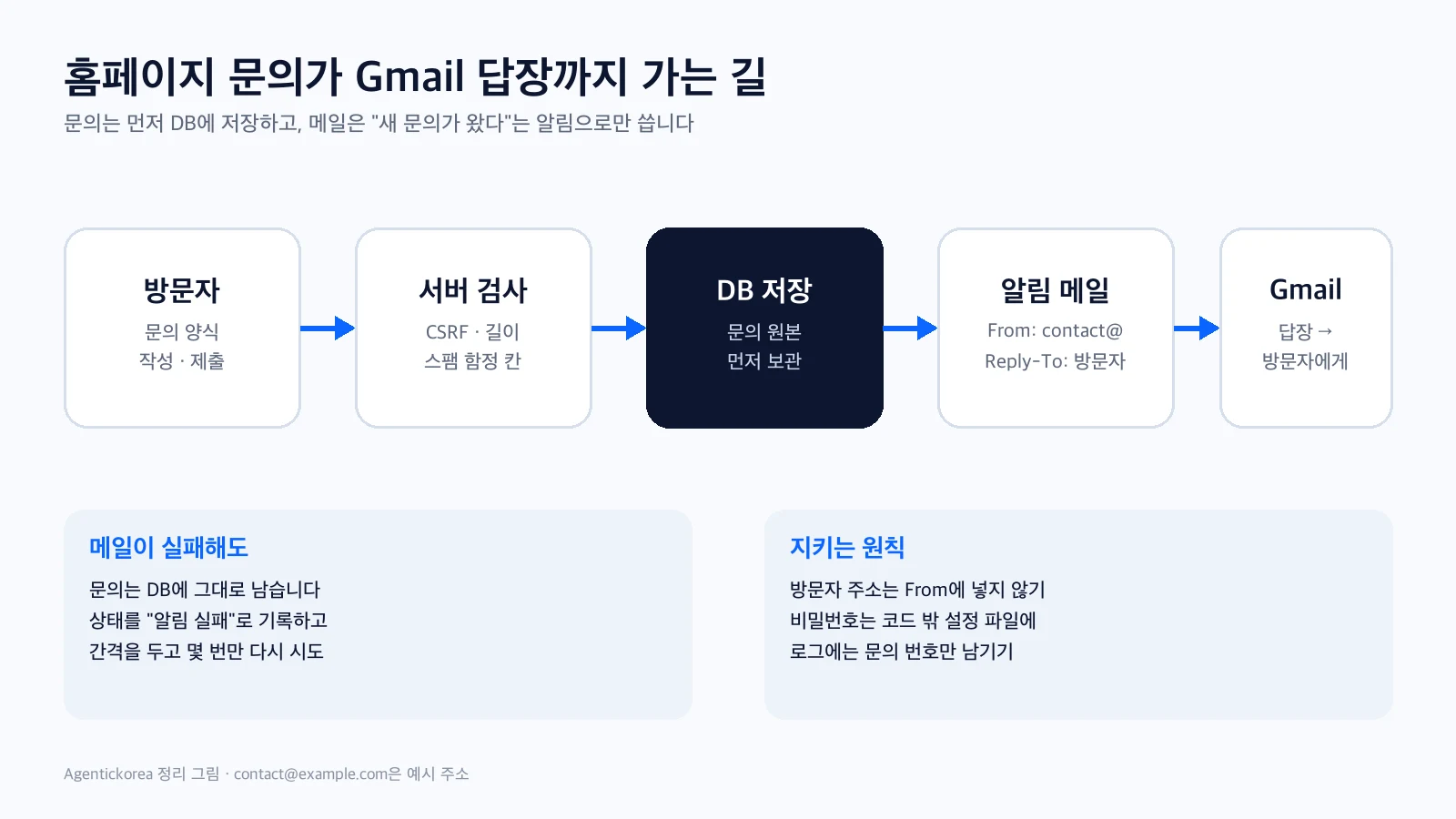
How I got a PHP site built with vibe coding onto Cafe24 web hosting, a Korean hosting service. It covers choosing a plan, what to check after signing up, SSL, how to tell AI about your server environment, the deployment flow, the errors I actually ran into, and common mistakes.
Hosting is the house your site lives in
If the domain is the address, hosting is the house where your site’s files actually live. To publish a PHP site built with vibe coding, you need a server that runs PHP and a database, and I use Cafe24 web hosting.
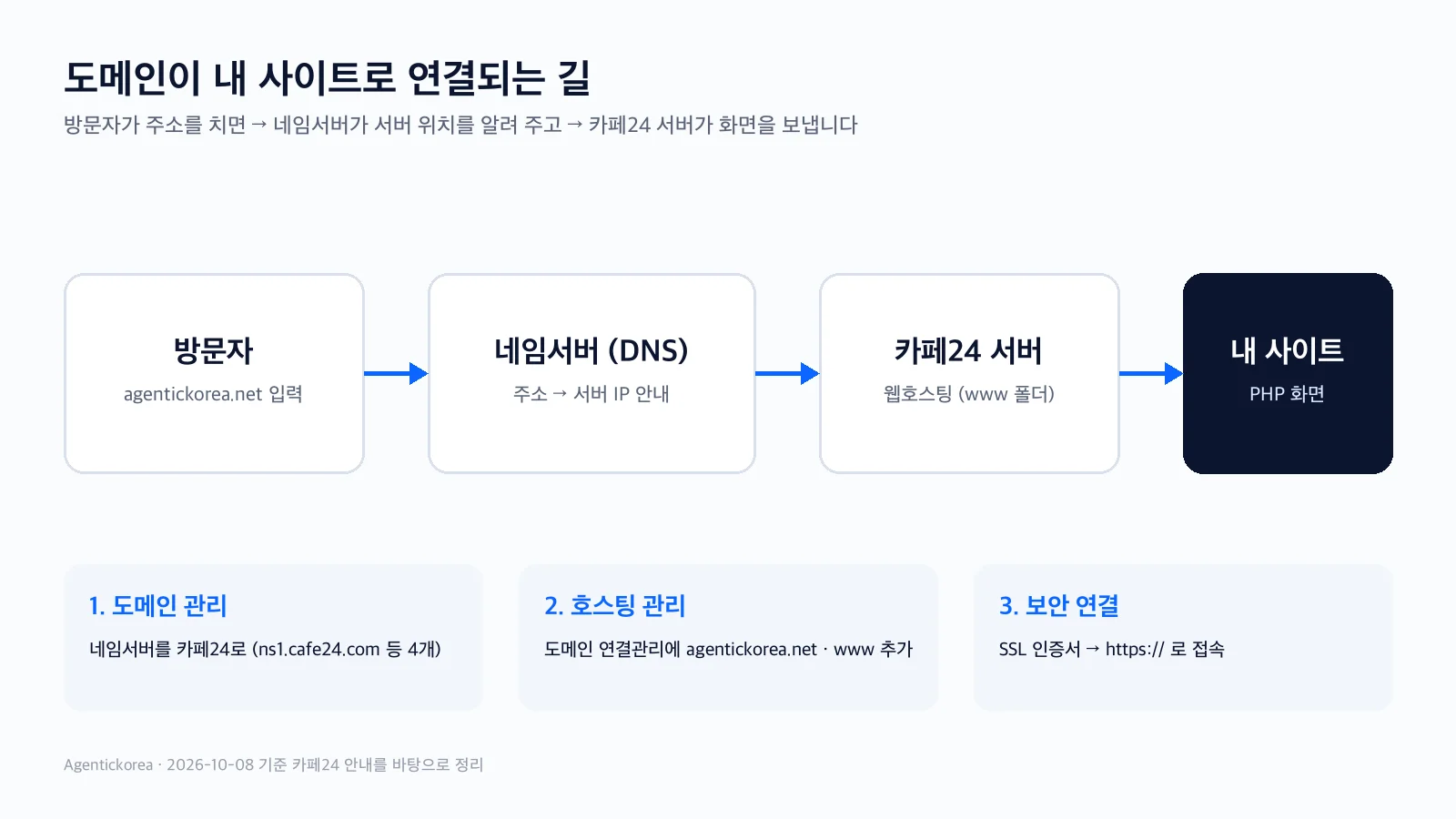
This post covers choosing and setting up Cafe24 web hosting, then getting the site that AI built on my computer onto the real server. Buying and connecting the domain is covered in the previous post, “Buying and Connecting a Domain on Cafe24”. Cafe24’s control panel is in Korean, so I give the Korean menu names with English explanations.
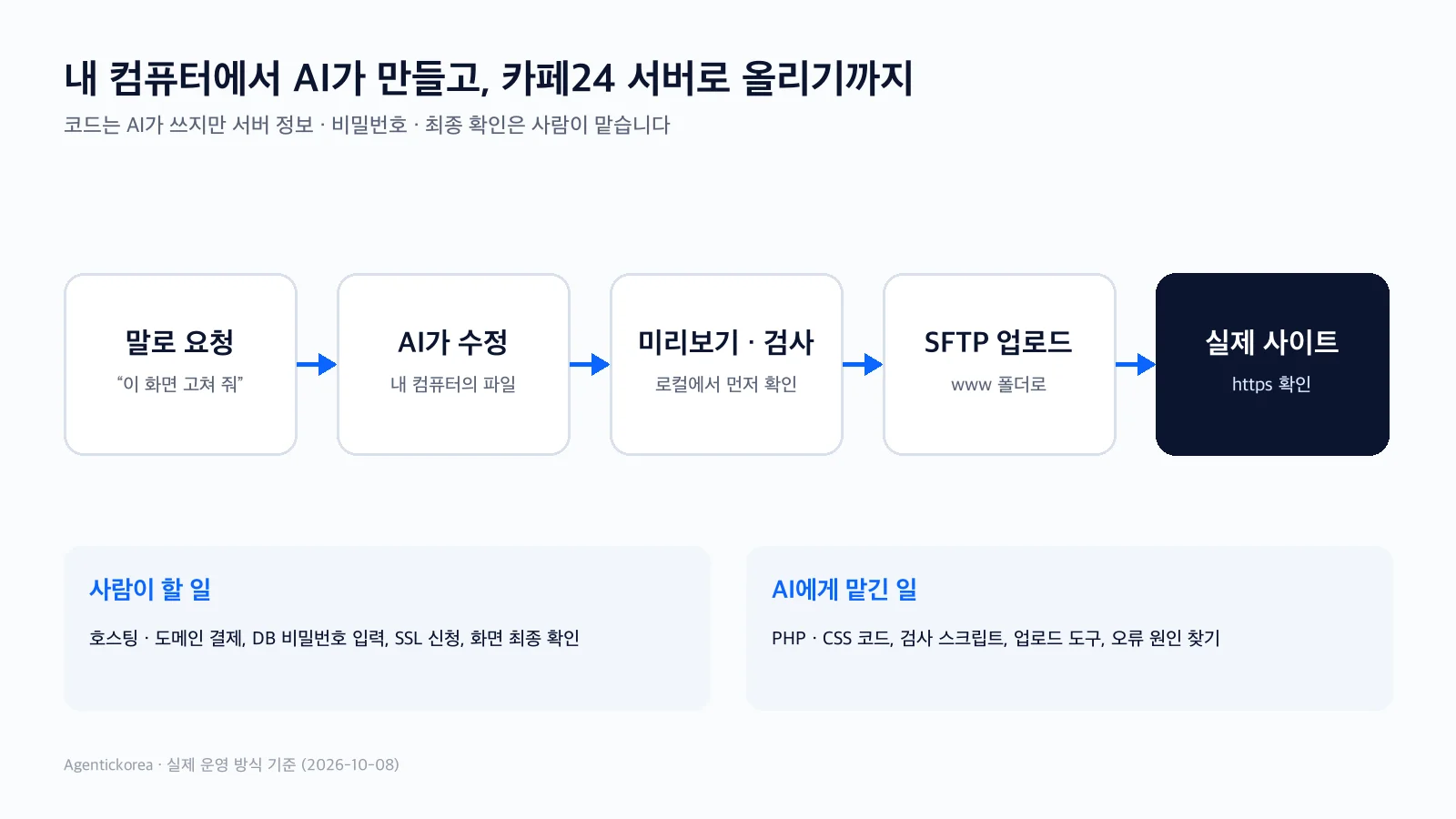
The picture at the top shows how I work now. AI writes the code, but payments, passwords and the final check stay with a person.
Step 1: Which hosting plan to choose
The “웹호스팅” (Web hosting) menu on the Cafe24 hosting homepage lists several products. For an ordinary PHP site, you choose among the Linux web hosting plans. As of October 8, 2026, the main product page, “뉴아우토반 호스팅” (New Autobahn Hosting), looks like this.
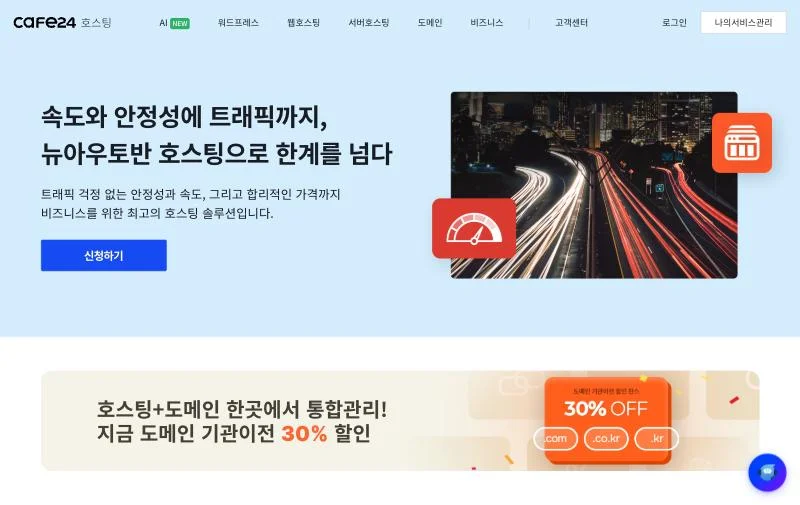
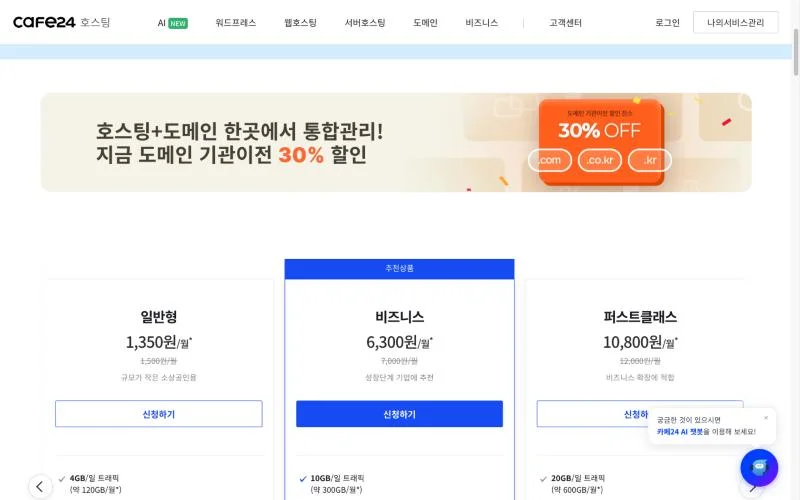
These are the items I checked when choosing a plan.
• PHP version: make sure it’s a version the AI-written code will run on. The product page lists PHP 8.4, 8.2 and 7.4, and my server runs PHP 8.4.
• Database: it uses MariaDB 10.x. My server runs 10.6, so I told the AI that version too.
• Traffic: if you exceed the daily traffic limit, the site can be blocked. For a new personal blog, starting with a small plan and upgrading as visitors grow keeps costs low.
• Number of your own domains: each plan allows a different number of your own domains to be connected.
• FTP/SFTP/SSH access: to upload the files AI makes, check that SFTP access is available.
Prices vary with the contract length and promotions, and there is a separate setup fee. The monthly prices on the page are noted as one-year contract discounts, so check the actual amount on the checkout page.
One thing you must know: according to Cafe24, you can change the PHP version after installation, but switching between PHP 8 and 7 resets your data and database. It’s safest to choose PHP 8 when you first sign up.
Step 2: What to check right after signing up
After payment, you can see your hosting details under 나의 서비스 관리 (My services). Checking these up front means fewer roadblocks when working with AI.
• Server IP: 나의 서비스 관리 > 호스팅관리 (Hosting) > 기본관리 (Basic settings) > 서비스 사용현황 (Service usage) > 하드/트래픽 사양 (Disk/traffic specs) > 서버아이피 (Server IP)
• Public web folder: on Cafe24, the files inside the www folder are what appear on your site.
• Database name and connection details: needed for the site to connect to the database.
• SFTP connection details: needed to upload files.
I never pasted passwords into the AI chat. I asked the AI to “create an empty settings file where I can write the passwords,” and I typed them into that file myself. That settings file lives outside the public folder (www) and is never committed to a code repository like Git.
Step 3: Preparing the secure connection (SSL)
As mentioned in the previous post, Cafe24 web hosting provides a free certificate only for the default address such as yourid.mycafe24.com. For a domain you bought, you need to apply for an SSL certificate separately.
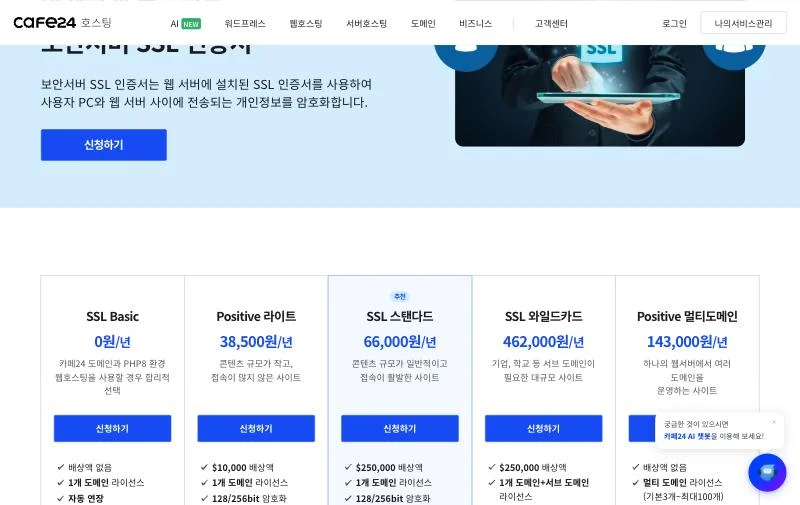
As of October 8, 2026, “SSL Basic” is a managed service that issues a Let’s Encrypt certificate and renews it automatically. The yearly fee is 0 won, with a separate installation fee for web hosting. Paid certificates differ in warranty amount and support. https itself works with the basic product, so for a personal blog, start by asking whether you need a warranty at all. Apply with the same details as the domain owner information.
I described in the previous post how https connections were refused for about 30 minutes right after I applied. During that window, it’s best to pause deployments and setting changes and just wait.
Step 4: Telling AI about your server environment
If the AI doesn’t know what your server is like, it writes generic code. Then things work on your computer but not on the server. At the start, I described the environment like this:
The production server is Cafe24 web hosting: PHP 8.4, MariaDB 10.6, UTF-8 charset.
The public folder of the site is the server's www folder.
Keep secrets like the DB password outside www, and never put them in the code repository.
Check everything in a local preview on my computer first, and only upload to the server when I say deploy.
The last line was especially important. Whatever the AI changed was checked first at the preview address on my computer, and it went to the server only when I said “deploy”.
Step 5: How deployment works with AI
At first I dragged files onto the server by hand with a program like FileZilla. Now a deployment tool the AI built handles these steps in one go.
• Run all the checks to make sure nothing is broken.
• Compare the server files with mine and save a copy of the server files on my computer.
• Upload only the changed files over SFTP, then verify that the uploaded files match.
• Back up the server database, then apply any needed table or setting changes.
• Check that public pages like the home page, About page and sitemap open normally.
The tool didn’t start out like this either. It took its current shape as I ran into the errors below one by one and asked the AI to “make sure this never happens again.”
Errors I actually ran into and how I fixed them
• Deployment stopped because the server settings file was missing: on the first deployment, the server had no settings file with the database connection details, so the site task stopped. Only I know the database password, so I wrote it into an empty settings file the AI created, uploaded that file separately, and deployed again.
• Server access failed from abroad: for security, I blocked FTP, SFTP and SSH access from overseas IPs in Cafe24. As a result, AI tools running in the cloud couldn’t reach the server. Now I deploy only from my own computer in Korea. I learned that changing security settings changes how you work, too.
• Connections cut off after many connections in a short time: when deployments and backups connected to the server repeatedly at short intervals, the Cafe24 server sometimes cut the connection. Since it’s a shared server, it seemed to block frequent connections in a short time. I changed the tools to connect only once per task and to wait between connections.
• Connection failed because of a space in the folder name: my working folder name contained a space, and the connection program split the path at that space, so it couldn’t find the server verification file. The AI found the cause and changed it to use a temporary path without spaces.
• A design change didn’t show up on the live site: the public folder was named public on my computer but www on the server. So the value that marks whether a CSS file changed was empty only on the server, and browsers kept using the old design file. It was fixed once the code found the files correctly regardless of the folder name. It’s a good idea to tell the AI from the start that your local and server folder structures differ.
• Checks failed because of a real post: on the day I published my first post, a pre-deployment check put a real post into the test database and couldn’t remove it, so it stopped. Nothing was wrong on the server; I fixed the check and deployed again. When a deployment stops, reading what exactly stopped comes first.
What I had to do myself vs. what I left to AI
• What I did: choosing and paying for the hosting plan, picking the PHP version, applying for SSL, entering the database and SFTP passwords, security settings like blocking overseas IPs, giving the deploy command and checking the live site
• What I left to AI: PHP and CSS code, local previews and checks, the deployment tool, backup and verification steps, and finding and fixing the causes of errors
A person handles “what only the account owner can do” and “the final check.” Because I didn’t hand those two to AI, mistakes never spread far.
Common mistakes for first-timers
• Starting on PHP 7 and resetting your data and database when switching to 8
• Leaving the database password in the AI chat or in the code repository
• Putting the secret settings file inside www, so anyone who knows the address can open it
• Editing files directly on the server while the files on your computer stay old, so the next deployment overwrites your changes
• Relying only on Cafe24’s automatic backups: Cafe24 itself says automatic backups are supplementary and important data should be kept separately
• Uploading straight to the server without checking on your own computer first
Closing thoughts
Hosting setup is hard only the first time. After that, the same loop repeats: the AI fixes something, I check it on my computer, and I say “deploy.” Most of the places I got stuck were not about code but about the server environment, accounts and security settings.
So now, whenever I start new work, I tell the AI about the server environment first, and I handle passwords and the final check myself. Sticking to just those two things has let me run a site built with vibe coding quite reliably.
The Cafe24 menu paths and prices in this post are based on Cafe24’s public pages as of October 8, 2026. Products and prices may change, so check the Cafe24 pages again before you sign up.