How I put my own address on a site built with vibe coding, using Cafe24, a Korean web hosting company. It covers searching for and buying a domain, connecting it to hosting, SSL, settling on one main address, how to tell AI about your domain, the errors I actually ran into, and common mistakes.
A domain is your site’s address
When you build a site with vibe coding, AI quickly produces the pages and features. But to let other people reach that site by typing an address, buying a domain and connecting it to a server was still something I had to do myself.
I manage this blog’s address, agentickorea.net, at Cafe24, and I also use Cafe24 web hosting. Cafe24 is one of the largest hosting providers in Korea, and its control panel is in Korean, so I give the Korean menu names with English explanations. Preparing the hosting itself is covered separately in the next post, “Setting up Cafe24 web hosting”.
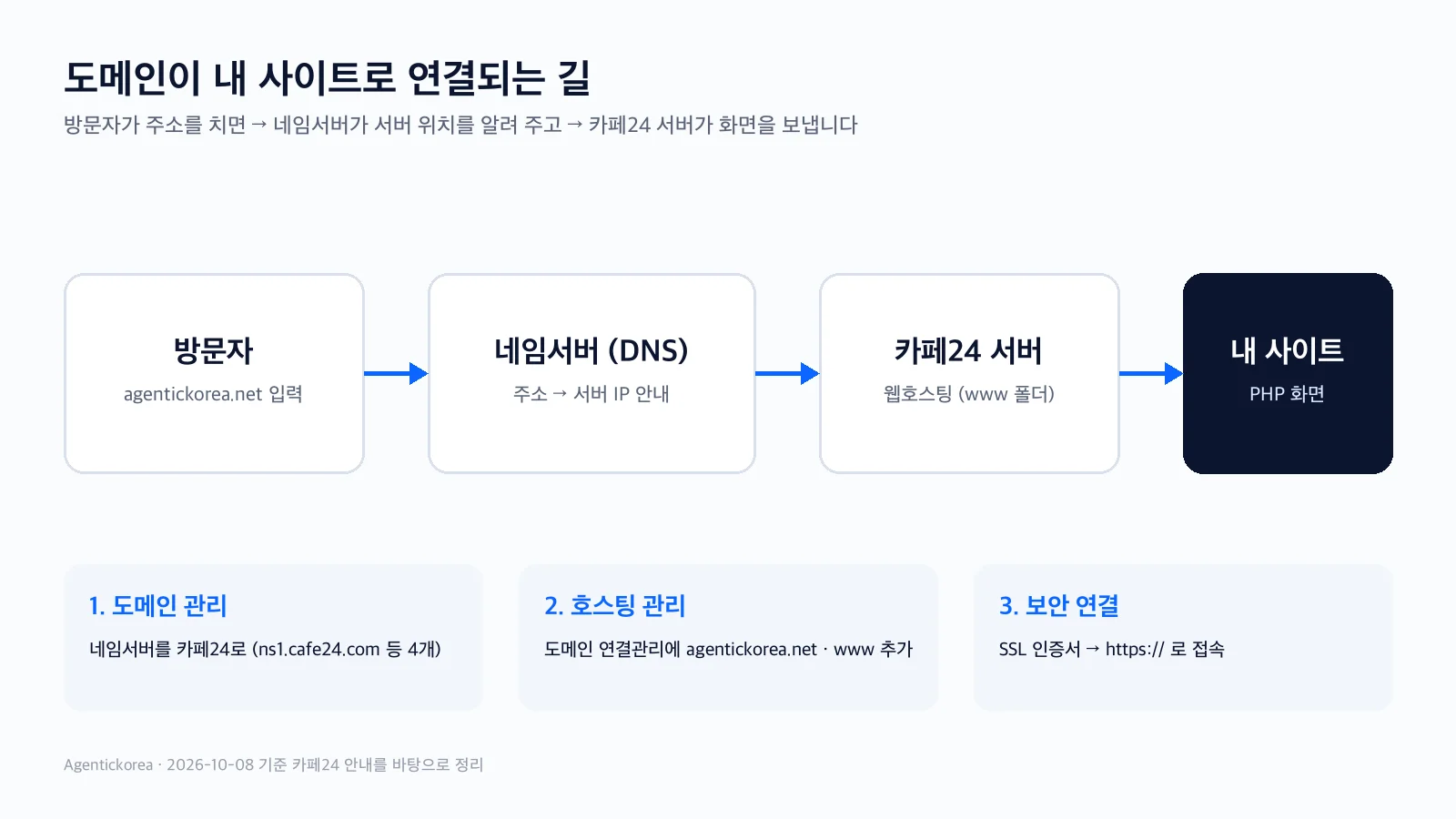
The picture at the top shows the whole structure. When a visitor enters the address, the nameserver says “the server for this address is over here,” and that server sends back the site.
• Domain: the address people remember (e.g. agentickorea.net)
• Nameserver (DNS): the information desk that tells browsers which server an address belongs to
• Hosting server: the computer that actually holds your site’s files
• SSL certificate: the secure connection that adds https and the padlock to your address
Step 1: Search for and choose a domain on Cafe24
On the Cafe24 hosting homepage, the “도메인” (Domain) menu at the top opens a search box. Enter the name you want, and it shows availability and prices for each extension such as .com, .kr and .net.
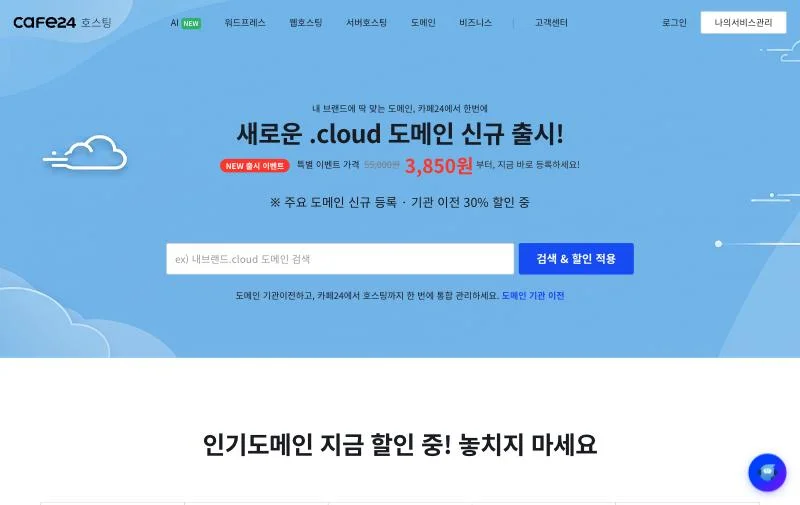
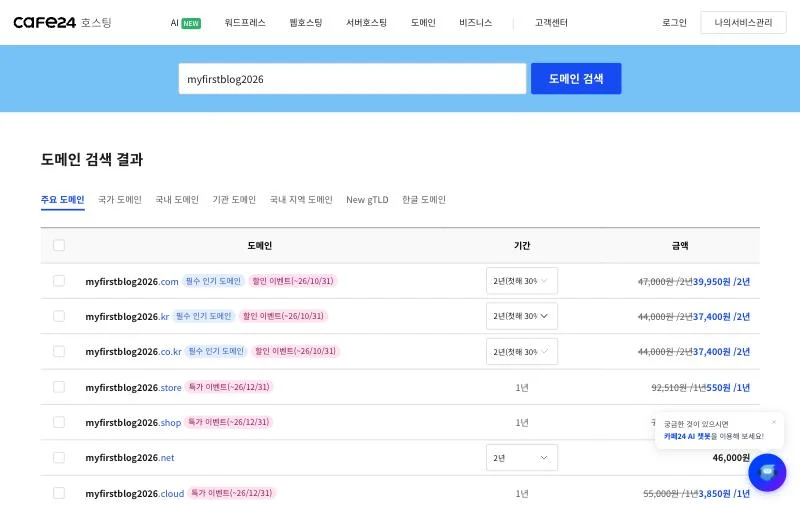
The prices on screen change often because promotions are mixed in. When I captured these screens on October 8, 2026, major extensions like .com had first-year discounts, and there was a box to choose the registration period. It’s worth checking the renewal price from the second year, not just the first-year discount.
These were my criteria when choosing the name.
• I made the blog name and the address identical. The name is Agentickorea, and the address is agentickorea.net.
• I read it out loud to make sure the spelling isn’t confusing, and I didn’t use hyphens.
• If the .com was already taken, I considered other extensions like .net or .kr instead of forcing a similar spelling.
The domain owner information you enter at checkout must match what you use later when applying for an SSL certificate. Cafe24’s SSL guide also says a certificate can be canceled if the application details differ from the domain owner information. Decide before paying whether you’re buying under a company or a personal name.
Step 2: Connect the domain to your hosting
Buying a domain doesn’t make your site open right away. You have to set up “send this address to my hosting server” in two places. According to the Cafe24 help center, the paths are:
• Hosting side: 나의 서비스 관리 (My services) > 호스팅관리 (Hosting) > 기본관리 (Basic settings) > 도메인 연결관리 (Domain connections) — add your domain here.
• Domain side: 나의 서비스 관리 > 도메인관리 (Domains) > 네임서버 변경 (Change nameservers) — set the nameservers to Cafe24’s.
Domains bought at Cafe24 usually already use Cafe24 nameservers. If you bought the domain elsewhere, change the nameservers to Cafe24’s in that company’s control panel. Cafe24 lists four: ns1.cafe24.com, ns1.cafe24.co.kr, ns2.cafe24.com and ns2.cafe24.co.kr. If you change only some of them, the connection may not be confirmed, so enter all four.
The thing I almost missed was www. If you connect only agentickorea.net and leave out www.agentickorea.net, anyone who types www in front won’t see your site. In the domain connection settings, make sure both the bare address and the www address are connected.
When you change nameservers, Cafe24 says it takes 24–48 hours on average to propagate worldwide. If you keep changing settings because the site doesn’t open immediately, it becomes harder to tell which setting is right. Changing it once and waiting is the fastest way.
Step 3: Add the https secure connection
Modern browsers show warnings like “Not secure” on sites without https. Search engines and ad reviews check it too, so an SSL certificate is essentially required.
Cafe24 web hosting provides a free certificate only for the default address such as yourid.mycafe24.com. For the domain I bought, I had to apply for an SSL certificate separately. The certificate types and prices are covered with screenshots in the hosting post.
Something actually happened to me here. Right after connecting the domain and applying for SSL, all https connections were refused for about 30 minutes. It happened while the certificate was being issued and installed, and at that exact moment the AI was trying its first deployment and stopped with a “secure connection failed” error. I panicked, thinking a setting was wrong, but it opened by itself after I simply waited. I recommend leaving about 30 minutes before checking after you apply for SSL.
Step 4: Settle on one main address
Once connected, the same site opens at several addresses: http and https, with and without www, all showing the same page. It looks fine to people, but search engines may treat them as different pages and split their ranking between them.
So I chose one main address and sent all the others to it. This blog uses https://agentickorea.net, and I asked the AI like this:
The main address of this site is https://agentickorea.net.
Redirect anyone arriving via http or with www to the same path on https://agentickorea.net with a 301.
It's Cafe24 web hosting (Apache), so use .htaccess, and tell me how to verify it afterwards.
The AI added redirect rules to the web server configuration file (.htaccess) and set the marker on each page that says “this is the main address of this page” (canonical). I only checked the result: type http://www.agentickorea.net into the address bar and see whether it changes to https://agentickorea.net.
Step 5: Telling AI about your domain
Something surprisingly important in vibe coding is telling the AI your site’s exact address. This blog changed its name and address partway through, so old addresses could have remained throughout the code. After settling on the main domain, I asked:
I've settled on agentickorea.net as the main domain.
Update every address used in the site name, share images, sitemap, RSS and robots.txt to this one,
and list any places where an old or example address is still left.
Cleaning this up in one go means your sitemap address won’t be out of sync when you register with search engines later.
Errors I actually ran into and how I fixed them
• The old default address stopped working: I had been uploading files to the server using the yourid.mycafe24.com address I got when I first created the hosting, and one day it failed with an error saying the address couldn’t be found. Following Cafe24’s guide on connecting by server IP, I changed the upload tool to connect to the server’s IP address. It happened around the time I connected the new domain, so check your upload tool’s connection address when you change domains.
• https refused while SSL was being issued: as described above, https didn’t open for about 30 minutes right after applying. Waiting solves it.
• “Invalid sitemap address” in search registration: In Google Search Console, entering just sitemap.xml showed “Sitemap address is invalid.” When you register as a “Domain property” that verifies the whole domain, you have to enter the full address, like https://agentickorea.net/sitemap.xml.
• Naver said robots.txt was missing: the file was fine, but the site wasn’t accepting the request method (HEAD) that Naver’s checking tool uses. I had the AI find the cause and fixed the site to answer that method normally too. If a file exists but a tool says it doesn’t, suspect the request method before the file.
What I had to do myself vs. what I left to AI
• What I did: choosing the domain name, paying and entering the owner information, connecting the domain and applying for SSL in the Cafe24 control panel, waiting and checking the actual connection, and pressing the verification button in search engine consoles
• What I left to AI: redirect rules to the main address, cleaning up addresses in the code, the sitemap and robots.txt, adding search engine verification tags, and finding the cause when errors happened
Paying and pressing buttons in control panels has to be done by the account owner. If you think of AI as the one who aligns the code and settings afterwards, the roles split cleanly.
Common mistakes for first-timers
• Not connecting the www address, so the site doesn’t show for visitors who type www
• Changing only some of the four nameservers for a domain registered elsewhere
• Not waiting after changing nameservers and changing settings again and again
• Using SSL application details that differ from the domain owner information, so the certificate gets canceled
• Moving nameservers to Cafe24 without moving the mail records (MX) used with another provider, so email stops working
• Turning off domain auto-renewal and losing the site when it expires
• Showing AI screenshots of control panels that include your name, phone number or passwords
Closing thoughts
Once a domain is connected, you rarely need to touch it again, but the terminology can feel overwhelming the first time. Think of the domain as the address, the nameserver as the information desk, hosting as the house, and SSL as the lock, and the order falls into place.
In the next post, I’ll cover choosing and setting up Cafe24 web hosting and getting an AI-built site onto the actual server.
The Cafe24 menu paths and prices in this post are based on Cafe24’s public pages as of October 8, 2026. Screens and prices may change, so check the Cafe24 pages again before you sign up.