Now that tools like Claude Design turn conversation into catalogs and landing pages, results depend on direction, not hands. Learn how to hand over screenshots, the seven parts of a good design brief, vague vs clear instructions, how to share references and a final checklist.
Lining up boxes one by one in a design program to make a single catalog page or an event landing page is quickly becoming a thing of the past. Now you can say "Make a catalog of this product for these customers," and AI produces a first draft. You also no longer need to retype old price lists or product sheets. Take a screenshot or hand over the file, and AI reads and organizes it.
So what matters now? Agentickorea's view is clear: not your hands, but your direction. Ask AI to "just handle it" and you get something safe that looks like everything else. The more clearly you state what you want, the closer you get to a result you are happy with. This article looks at how to give good direction when designing with AI. Tool details are based on Anthropic's official materials as of Oct 13, 2026.
Designing by talking: what has changed
Claude Design is a leading example. Anthropic released Claude Design on Apr 17, 2026 as a research preview from Anthropic Labs. According to the official announcement, it can do the following.
• What it makes: design drafts, interactive prototypes, presentation slides, one-pagers and other visual work
• What you can give it: written instructions, images and documents (DOCX, PPTX, XLSX), your codebase, and a capture tool that grabs elements from your website
• How you refine: comment on specific elements, edit text directly, use adjustment knobs for spacing, color and layout, or ask for a change across the whole design
• Export: Canva, PDF, PPTX, standalone HTML, and a handoff bundle for Claude Code
The Claude Help Center (checked Oct 13, 2026) says Claude Design is available on the Free, Pro, Max, Team and Enterprise plans. Availability changes often, so check the Help Center again before you start.
The tool's name is not the point. Catalogs, landing pages and proposal covers, work you once handed to a designer or spent hours on yourself, have turned into "say it, look at it, fix it."
No more typing it in: hand over screenshots and files
It is not only design that changed. Re-entering existing material works differently too. Capture a table from an old catalog, an Excel price list or a photo of handwritten notes, and AI reads and organizes the content. Claude's official documentation also describes reading text and tables in images.
The same documentation is clear about the limits. Low-quality, rotated or very small images can be misread, and important results should be checked by a person. So when you hand over screenshots:
• Capture them large, straight and with clearly legible text.
• Send one table or one page at a time instead of everything at once.
• Compare numbers such as prices, specifications, contact details and dates line by line against the original.
That is why direction matters
AI fills any gap in your instructions with the safest choice. Words like "pretty," "stylish" or "whatever you think" carry almost no information for AI, so the result drifts toward the average. In our view, many disappointing AI design results come from empty direction rather than from limits of the tool.
The Claude Help Center also recommends four things in a prompt: what you are building, how it is arranged, what information it shows and who will use it. In practice, adding mood, brand and what to avoid makes the result far more consistent.
Seven things a good design brief includes
• Goal: what this piece should achieve (more inquiries, a trade-show handout, an internal report)
• Audience: who will see it (purchasing managers, consumers, overseas buyers)
• Format and size: be specific, such as a 4-page A4 portrait catalog, a mobile portrait landing page or 10 slides at 16:9
• Key message and content: the title, products, numbers and contact details that must appear, and the one thing readers should notice first
• Mood and brand: a mood such as trustworthy or bright and friendly, plus brand colors, fonts and logo position
• Reference: an example you want to be close to, and which part of it to borrow (layout only, color scheme only)
• What to avoid: heavy shadows, excessive English slogans, small text over photos and anything else you do not want
You do not have to fill in all seven. But even goal, audience and format alone produce something completely different from "just handle it."
Example: same catalog, different direction
The following is a hypothetical example.
• Vague direction: "Make a nice catalog for our company's cable ties."
• Clear direction: "Make a 4-page A4 portrait catalog to hand to purchasing managers at a trade show. Page 1: company introduction and one hero product photo. Pages 2-3: the products from the attached Excel price list in tables by type. Last page: contact details and space for a QR code. Mood: trustworthy. Colors: mainly navy and white. Large text. From the attached reference image, follow only the table layout, not the colors. No decorative shadows and no English slogans."
The second brief covers goal, audience, format, content, mood, reference and what to avoid. When you review and revise the draft, the standard is clear, so revisions go faster.
Not sure? Show a reference design
If what you want is hard to describe, a reference design is the fastest route. The Claude Help Center also says uploading existing designs, competitor products, wireframes or inspiration images helps with "make it look like this" requests. You can also register your company's design system (colors, fonts and components) so later projects apply it automatically.
Keep two rules when you share a reference.
• Point to what to borrow. "Only the three-column layout and spacing of this image" is more precise than "like this image."
• Do not have AI copy someone else's design, logo, photos or copy as is. Borrow the structure and mood, and use your own photos and text.
Be specific when revising, too
The first draft is a starting point. As the Help Center recommends, be specific when revising as well. "Tighten the spacing between form fields to 8px" works much better than "Something looks off."
• For big structural changes, use the chat: "Show me 2-3 alternative layouts for this page"
• For a single part, leave a comment on that element
• For small tweaks such as alignment or size, edit directly on the canvas
• Before a big change of direction, ask to save the current version first
A person does the final check
Even when you design by talking, responsibility stays with people. Before publishing or printing, check the following.
• Prices, specifications, dates and contact details match the original
• Company name, logo and colors are consistent with existing materials
• You have the rights to use every photo, font and icon
• No exaggerated or unverified claims (best, number one and so on) slipped in
In short: be a director, not just a designer
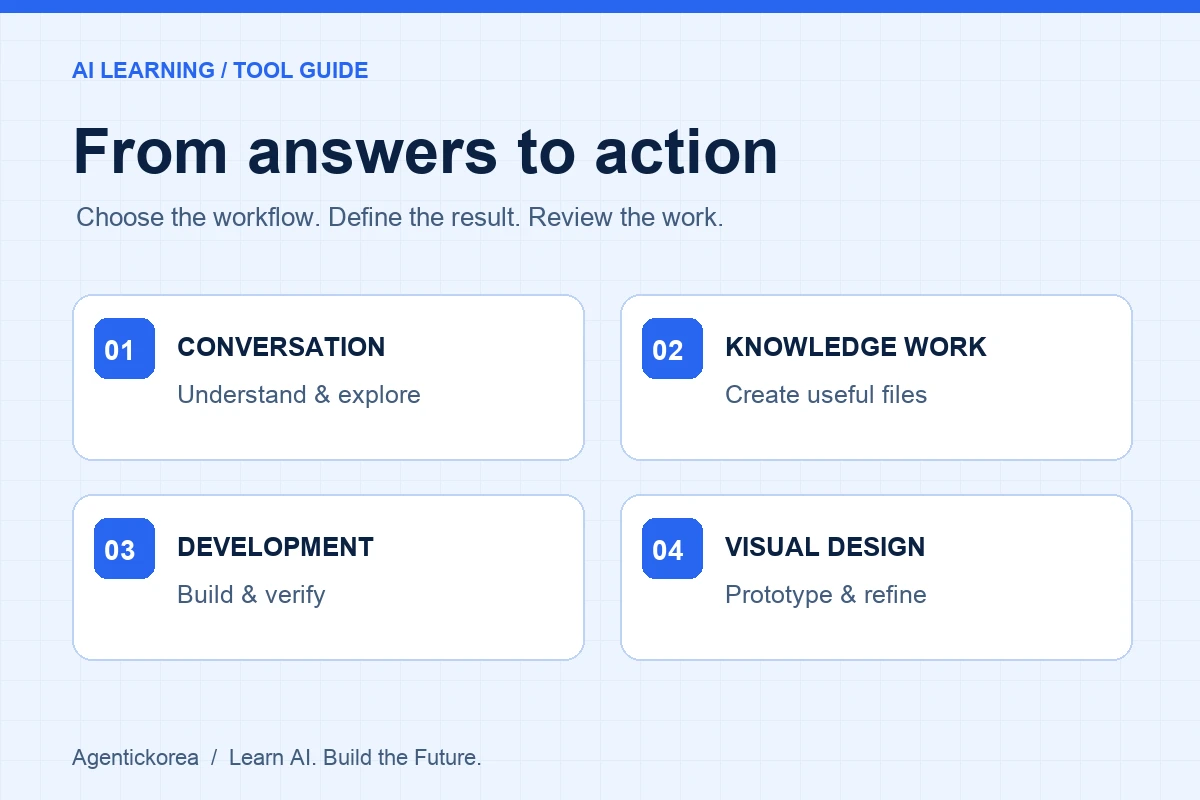
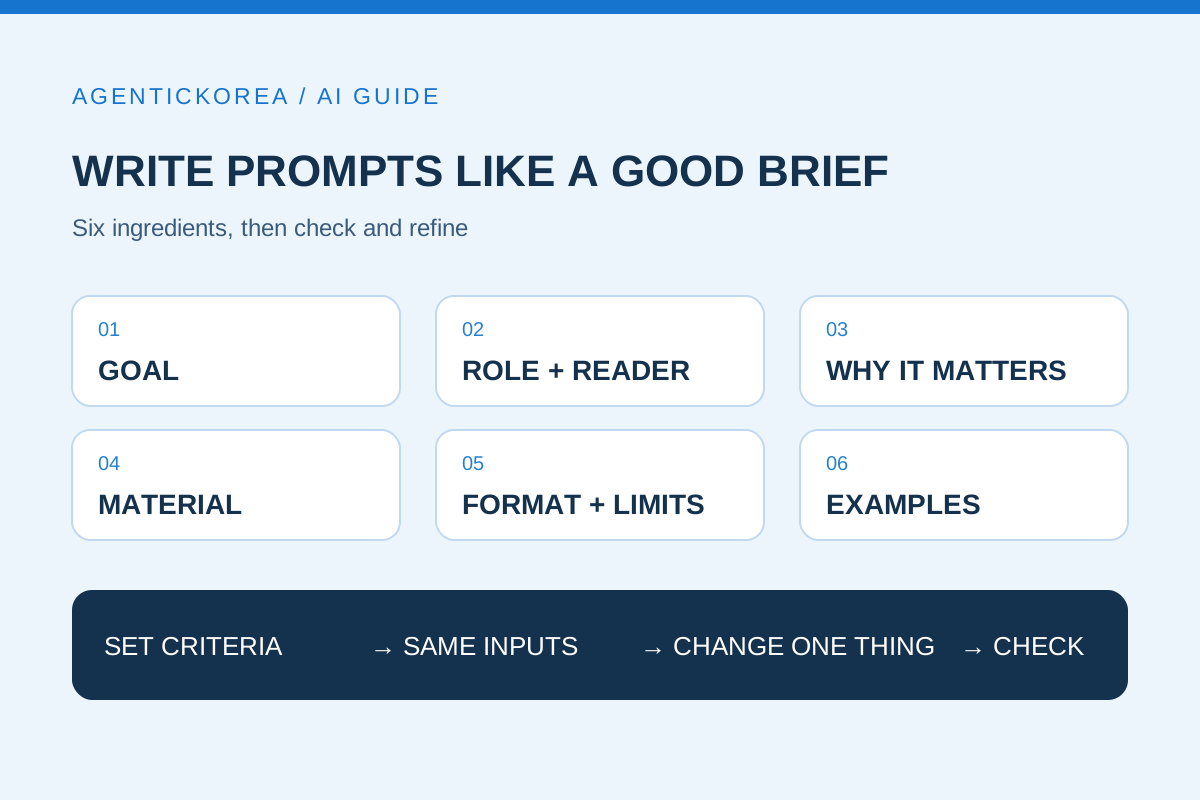
The hours spent crafting by hand are shrinking, but deciding "what, for whom and with what feel" matters more than ever. The basics of handing work to AI are the same whether it is design or writing. For the fundamentals of writing instructions, see How to write good prompts. For choosing a tool, see ChatGPT vs Codex vs Claude. To learn step by step from the beginning, visit the learning guide.
Sources
Anthropic — Introducing Claude Design by Anthropic Labs (2026-04-17) ↗
Claude 도움말 — Get started with Claude Design (2026-10-13 확인) ↗